QR code ordering, from the table to your kitchen
Put a QR code on every table. Guests scan it with the phone camera, browse your menu with photos, pick add-ons and pay by UPI or card, or at the counter when they leave. The order reaches your kitchen with the table number on it, and nobody downloads an app.
- No app, no login
- UPI & card, or at the counter
- Veg filter & search
- In 5 languages
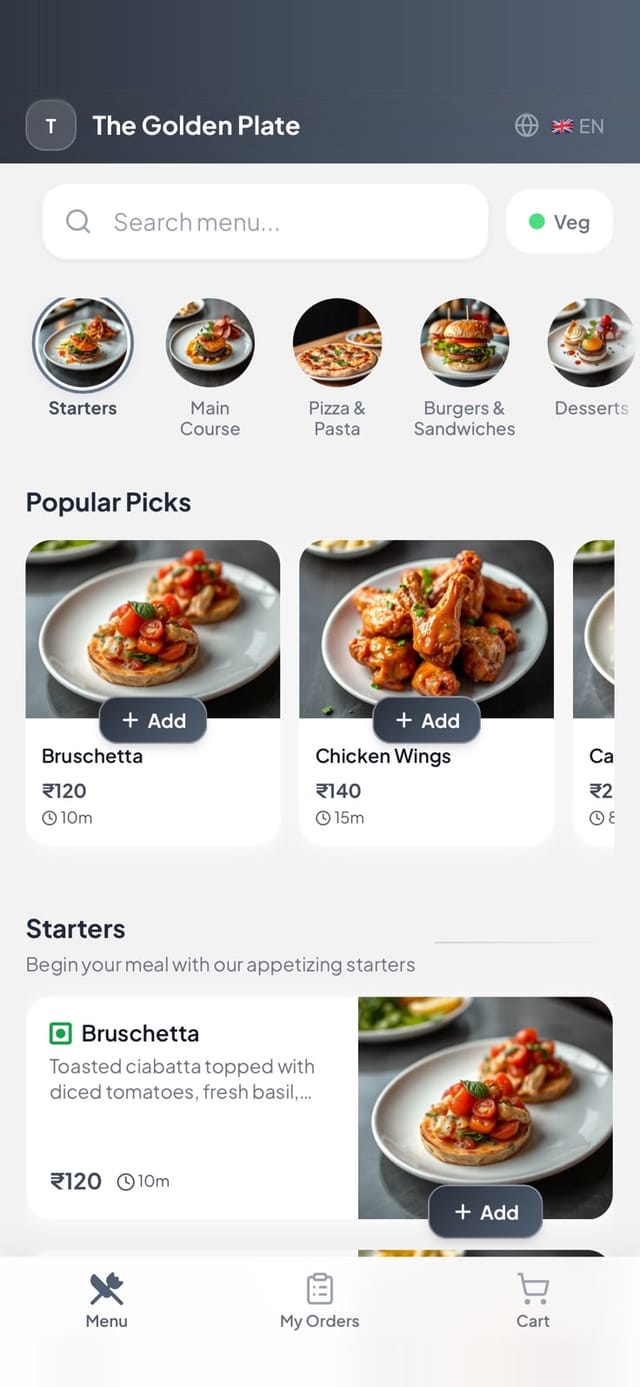
A drawing of a sample table and order. Names and prices are made up.
A full house shouldn’t mean guests waiting to order
A busy evening the usual way, and the same evening with a QR on every table.
Guests sit down
The usual way: They wave for a menu, then wave again for someone to take the order.
With Ubasari: They scan the QR on the table and your menu opens on their own phone.
A special request
The usual way: The waiter writes “paneer tikka” and the “less spicy” never reaches the kitchen.
With Ubasari: The guest’s add-ons and note reach the KOT and the kitchen screen as they typed them.
A dish runs out
The usual way: Two tables order the last biryani, and one of them has to be told.
With Ubasari: Mark it unavailable and it greys out on every guest’s phone at once.
The second round
The usual way: The extra rotis go on a new slip, and someone has to add them to the table’s bill.
With Ubasari: Every order from every phone at the table goes on the same table bill.
Paying
The usual way: The table waits for the bill, then waits again for the card machine.
With Ubasari: Guests pay by UPI or card as they order, or settle the whole table at the counter.
Prices change
The usual way: The printed menu card still shows last year’s prices.
With Ubasari: Guests see today’s menu, and every order is priced from it.
Scan, order and pay, without waiting for a waiter
Five things that change when the menu lives on the guest’s phone.
- Table QR codes
A QR code for every table, made for you
Add a table on the Tables page and Ubasari makes its QR code. Download it as an image named after the table, or pick several tables and download them all at once, then print them on table tents or stickers.
- Group tables into zones like AC, Non-AC or Rooftop
- Regenerate a table’s code and the old printed one stops working
- Every phone that scans the same table orders into the same table bill
- The guest menu
A menu guests can find their way around
The QR opens your menu in the phone’s browser, with your logo, dish photos, descriptions and prices. Guests search by name, tap Veg to see only veg dishes, and jump between your categories.
- Veg, vegan and gluten-free tags, and allergens like eggs or dairy
- Popular, Trending and New badges worked out from your own orders
- No sign-up, no phone number and no app to download
- Add-ons & notes
Half or full, extra cheese, less spicy
The sizes and add-ons you set up show on every dish they belong to, each with its price. Guests have to pick what you mark Required, can’t go past the limit you set, and can type a note like “no onion”.
- A size sets the dish’s price and add-ons add to it
- The note prints on the KOT and shows on the kitchen screen
- Every order is priced from your menu, never from the guest’s phone
- Paying
Pay as they order, or at the counter
Run it the way your restaurant works. With pay as you order, guests pay by UPI or card into your own Razorpay or Paytm account, and the kitchen gets the order once it is paid. With pay at the counter, the order goes straight to the kitchen and the guest pays when they leave.
- Collect a whole table’s orders in one go, by cash, card or UPI
- The table’s bill on the guest’s phone shows what is paid and what is left
- If an online payment fails, nothing reaches the kitchen and the guest tries again
- Counter & kitchen
Every order lands where it should, with the table number
A new QR order shows up on your dashboard with its table and how many items it has. It goes to your kitchen screens or the cooks’ phones by station, or prints one KOT per station on your thermal printer.
- Print the bill by itself when a guest pays from their phone
- When the kitchen marks it Preparing or Ready, the guest sees it live
- Waiters and the counter keep taking orders as usual

QR ordering live in four steps
All from the dashboard, on your phone or laptop.
- 1
Add your menu
Type it in or import a CSV, then add photos, veg tags, sizes and add-ons.
- 2
Choose Full service
In Settings, under How you take orders, pick Full service so orders can come from the QR menu.
- 3
Add tables and print the QR codes
Add each table on the Tables page, download its QR code and stick it on the table.
- 4
Guests scan and order
Orders reach your kitchen screens or printer, and your dashboard shows each one with its table.
Small things that matter when every table is full
What keeps QR ordering smooth on a busy night and a weak signal.
In five languages
The guest app comes in English, Hindi, Spanish, French and Arabic, and opens in the phone’s language. Dish names stay as you wrote them.
Offers on the menu
Offer banners show the code, the minimum order and when it ends. One tap carries the code to the cart, for guests who pay online.
Easy on a weak signal
The menu is kept on the phone for a few minutes and the cart survives a reload. Tapping Place Order twice still places one order.
Sold out means sold out
Switch a dish off on your dashboard and it greys out on every guest’s phone, so nobody can order it.
GST details on show
Your GSTIN and FSSAI number sit at the foot of the menu, and the guest’s bill carries the GST split and SAC code.
Your colours
Your logo heads the guest menu on every plan with QR ordering. On Max, the whole menu takes your brand colour.
Fits the way your guests already eat
Wherever guests sit at a table and order, the QR can take the order.
Full-service restaurants
Guests order rounds from the table and pay at the counter at the end. Waiters spend the rush serving, not writing.
Self-service cafés
Guests order and pay from the table, and the kitchen only starts on orders that are paid.
Big floors and rooftops
Group tables into zones, and every order still arrives with its own table number.
- Growth: QR ordering for up to 10 tables, online payment, promo codes and offer banners
- Max: up to 100 tables and your brand colour on the guest menu
- Free trial: everything in Growth for 14 days
- Core is the counter-only plan, with no guest app
It all works together
Every part of Ubasari shares the same menu, orders and reports, so a change in one place shows up everywhere.
Questions owners ask about QR ordering
See your own menu on a guest’s phone, on your demo call
Send us your menu. We’ll add a table, you scan its QR from your phone, order a dish with a note and watch it reach the kitchen.
Questions first? Message us on WhatsApp
- No credit card required
- Cancel any time
- Live in 30 minutes